Page 1 of 1
DEM Crop Not Working
Posted: 27 Mar 2016 19:50
by rjbradley
I have tried to use the DEM Crop tool with both large and small DEM samples and nothing happens. When I save the DEM the file size is the same and the coverage area remains the same. I am using Version 2.6.0.1.
Re: DEM Crop Not Working
Posted: 28 Mar 2016 13:11
by geophil
All DEM files cover a rectangular area. If you crop-off part of it, but the overall dimensions remain the same, the file size will also remain the same. (The MicroDEM .dem file format, which is used by TransDEM, does not compress.)
Re: DEM Crop Not Working
Posted: 04 Apr 2016 06:13
by Pencil42
I just came here to post the same thing. I'm also unable to crop a DEM. I load the DEM, select a rectangular area, hit the crop button, but nothing changes. I was expecting the area outside the selection to disappear, but it remains the same. If it helps, the DEM I'm using is posted at
http://carsoncarshops.com/files/m_and_p.zip (630 MB).
I'm sure I'm just missing a step somewhere, but I just can't see it.
I'm running TranzDEM 2.5.1.0 x64 on Win 10 x64.
Any help you can provide would be great!
Thank you,
Curtis
Re: DEM Crop Not Working
Posted: 04 Apr 2016 19:12
by geophil
Hello Curtis,
this is quite strange. Works fine here.
Re: DEM Crop Not Working
Posted: 05 Apr 2016 04:45
by Pencil42
Like I said, I'm sure I'm just clicking something wrong, or missing a step.
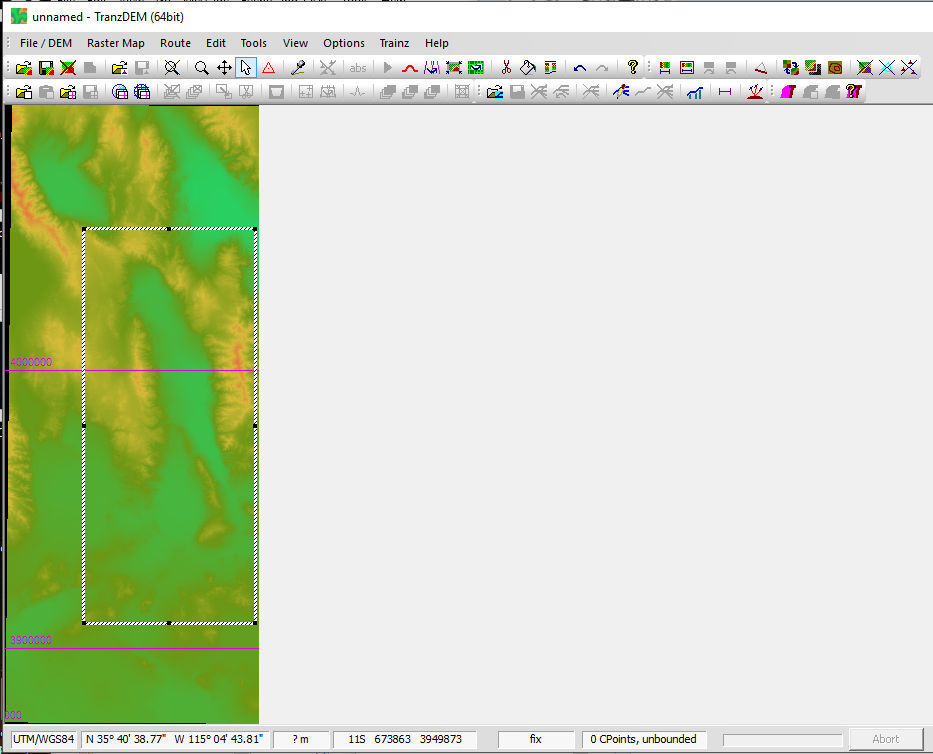
I first define a rectangular area using the mouse pointer:
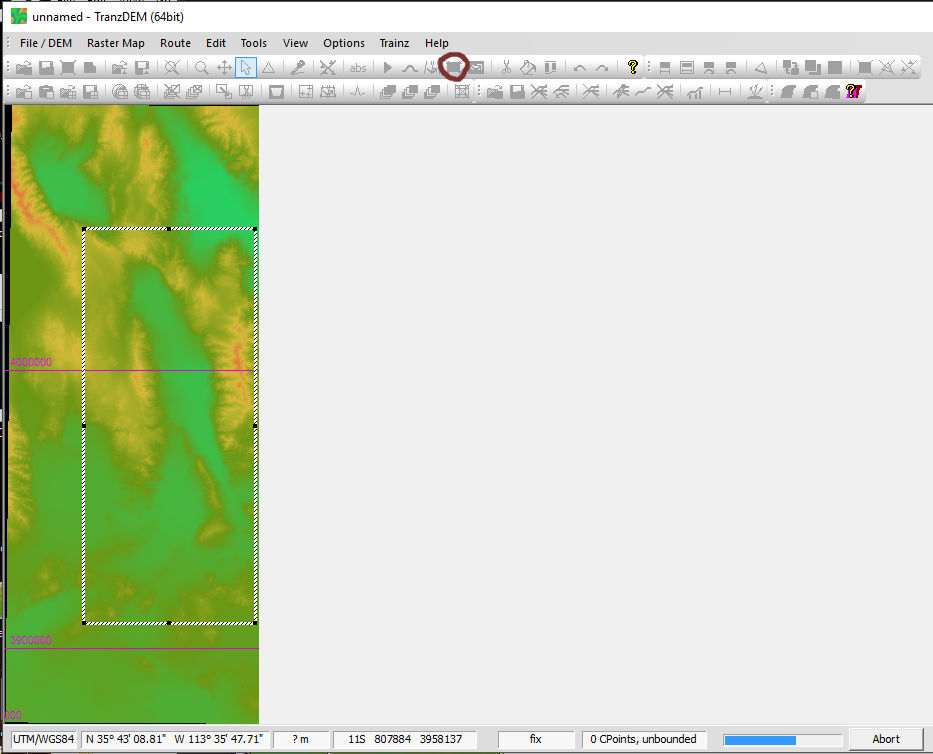
I then click on the 'crop' button (circled):
The operation completes and the rectangular box is gone, but the DEM hasn't changed:
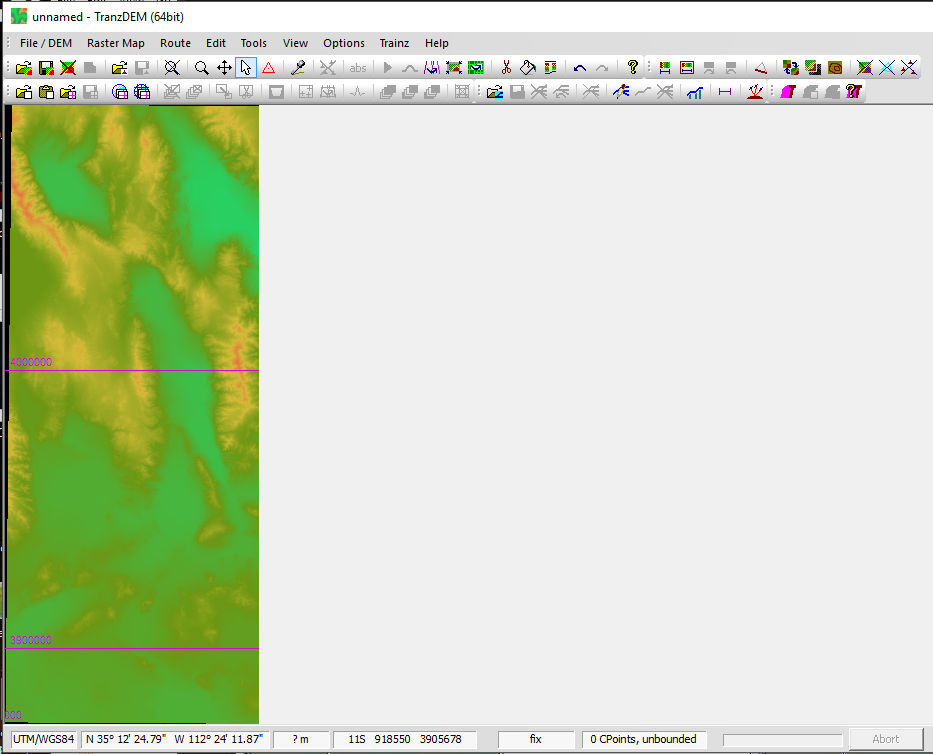
Any ideas?
Curtis
Re: DEM Crop Not Working
Posted: 05 Apr 2016 08:36
by geophil
I see.
The "Reduce Margins" command will do a crop indeed, but uses the DEM bounding box as its mask. The bounding box is an invisible rectangular mask which encompasses all non-void points of the DEM.
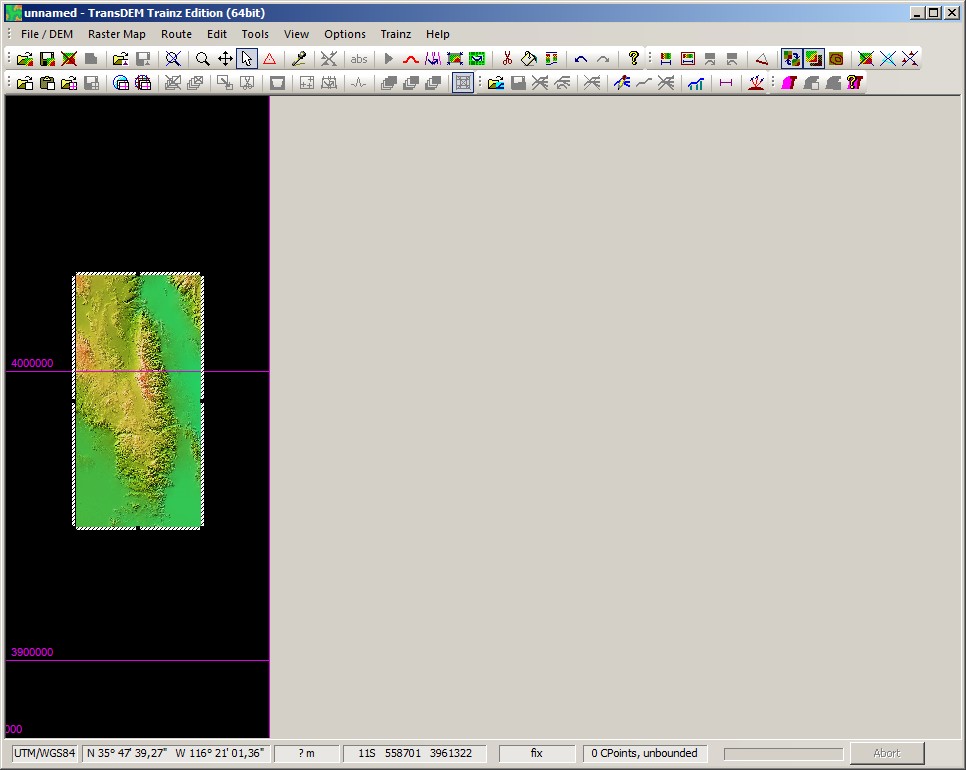
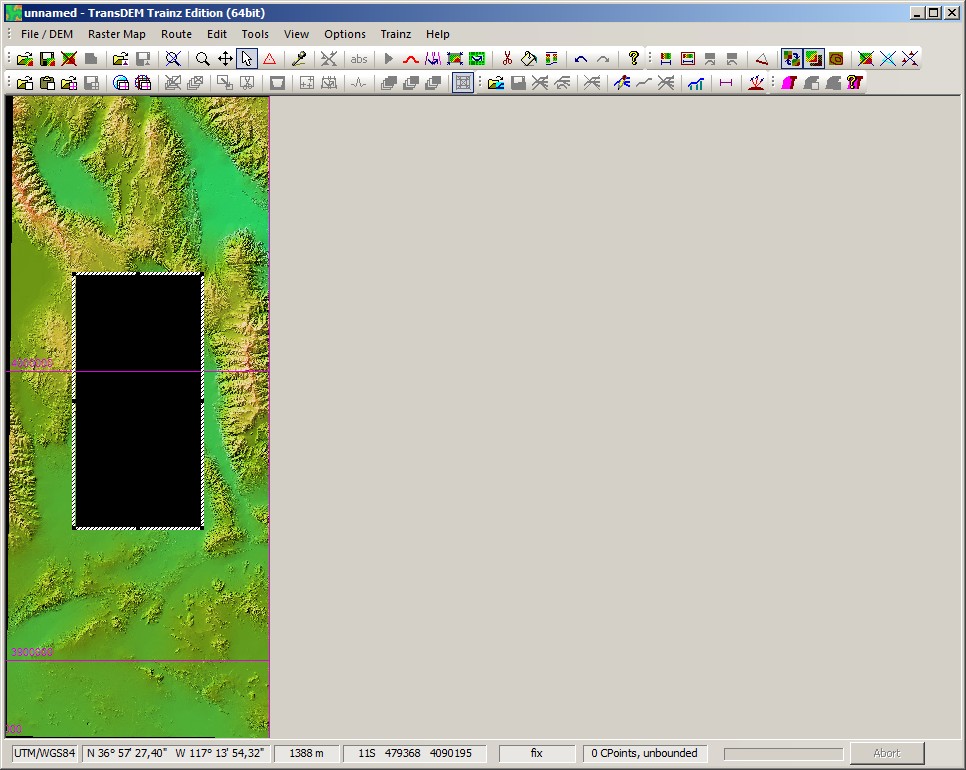
So, to crop a DEM, you first have to erase portions of the DEM, setting points to "void". For this you usually draw and drag the normal mask around the area you want to preserve and then apply the "Erase DEM points" command, the scissors icon. The cursor will change shape. Then you click outside your mask. A dialog box will pop-up which allows you to adjust the behavior of the function. Once applied, you will get the results shown in my screenshots.
After that, you can apply the "Reduce Margins" function and it will work as expected. Note that "Reduce Margins" will also be applied automatically if you save any DEM to file.
Re: DEM Crop Not Working
Posted: 06 Apr 2016 06:55
by Pencil42
That was it; thank you for the help!!
Curtis